Purupuru Maker
How to make an image wobble
A clean wobble animation starts with a deliberate stable region and a small, soft mask. This workflow explains how to choose an image, paint the moving detail, tune the motion, fix common artifacts, and export a loop without uploading the source file.
What makes a useful wobble
Local motion works because one part moves against something that does not. Hair feels soft when the eyes and jaw stay fixed. A pet's chest looks fluffy when its paws and floor shadow do not move. Jelly looks elastic when the plate remains rigid. Before uploading an image, identify both sides of that contrast: the feature that can bend and the visual anchor that must stay stable.
Choose a JPG, PNG, or WebP image you created or have permission to edit. A clear subject, simple background, and visible margin around the moving detail reduce cleanup. Avoid starting with tiny text, dense foliage, overlapping people, or a motion area that touches every edge of the frame. Purupuru Maker can process those images, but a clean first source makes the effect easier to judge.
1. Establish the stable anchor
Decide what the viewer will use as a reference. On a portrait, protect the pupils, mouth, jaw, and shoulders. On a pet photo, protect the nose, paws, collar hardware, and floor. On a meme, keep the caption and one prop sharp. On a product image, keep the logo, required label text, package outline, support surface, and cast shadow stable.
This step is more important than choosing a preset. If the anchor moves, lowering the speed will not repair the composition. Say the rule in one sentence before painting—for example, “Only the jelly moves; the plate and spoon do not.” That sentence gives you a quick test for every brush stroke.
2. Paint the smallest useful mask
Upload the image and choose Brush. Paint from the softest free edge toward the attachment point. For hair, begin at the tips and stop before the forehead. For an ear, paint the outer half and leave its base mostly fixed. For jelly, fill the soft material with overlapping strokes but stop before the plate. A mask does not need to cover every pixel of a feature; a few separated strokes often preserve more texture.
Turn Mask visibility on while refining the selection. Switch to Eraser for straight edges, eyes, text, shadows, and hard props. Undo removes the latest stroke, while Clear paint is useful when the original mask was based on the wrong anchor. Work at a medium brush size first, then use a smaller brush around boundaries instead of trying to trace the entire subject with one tiny stroke.
3. Use Edge feather at the boundary
Edge feather blurs the mask transition, not the source image. A value around 8–12px is a practical starting point at the editor's full image size. Fine fur can tolerate more feathering; bold cartoon outlines may need less. Preview both extremes of the movement. If a root, seam, or plate edge separates at the farthest frame, erase the mask away from that edge before adding more feather.
Feathering cannot rescue a mask that crosses the wrong object. A moving spoon blended softly into a stable plate is still a moving spoon. Keep the semantic boundary correct first, then use feathering to hide small pixel-level transitions.
4. Match the preset to the material
| Subject | Starting preset | Starting values | Stable anchor |
|---|---|---|---|
| Anime hair | Sway | 12px, 0.8×, 10px feather | Face and shoulders |
| Pet fur | Soft | 10px, 1.0×, 12px feather | Eyes, nose, paws, floor |
| Reaction drawing | Shake | 14px, 1.2×, 8px feather | Text, eyes, and props |
| Soft product | Jelly | 8px, 0.8×, 10px feather | Label, plate, and shadow |
Strength controls distance; speed controls urgency. When an effect looks wrong, reduce strength before changing speed. Large displacement causes edge collisions and reveals pixels from across a boundary. Speed changes character without moving the feature farther, so it is a safer second adjustment.
5. Compare source and real output
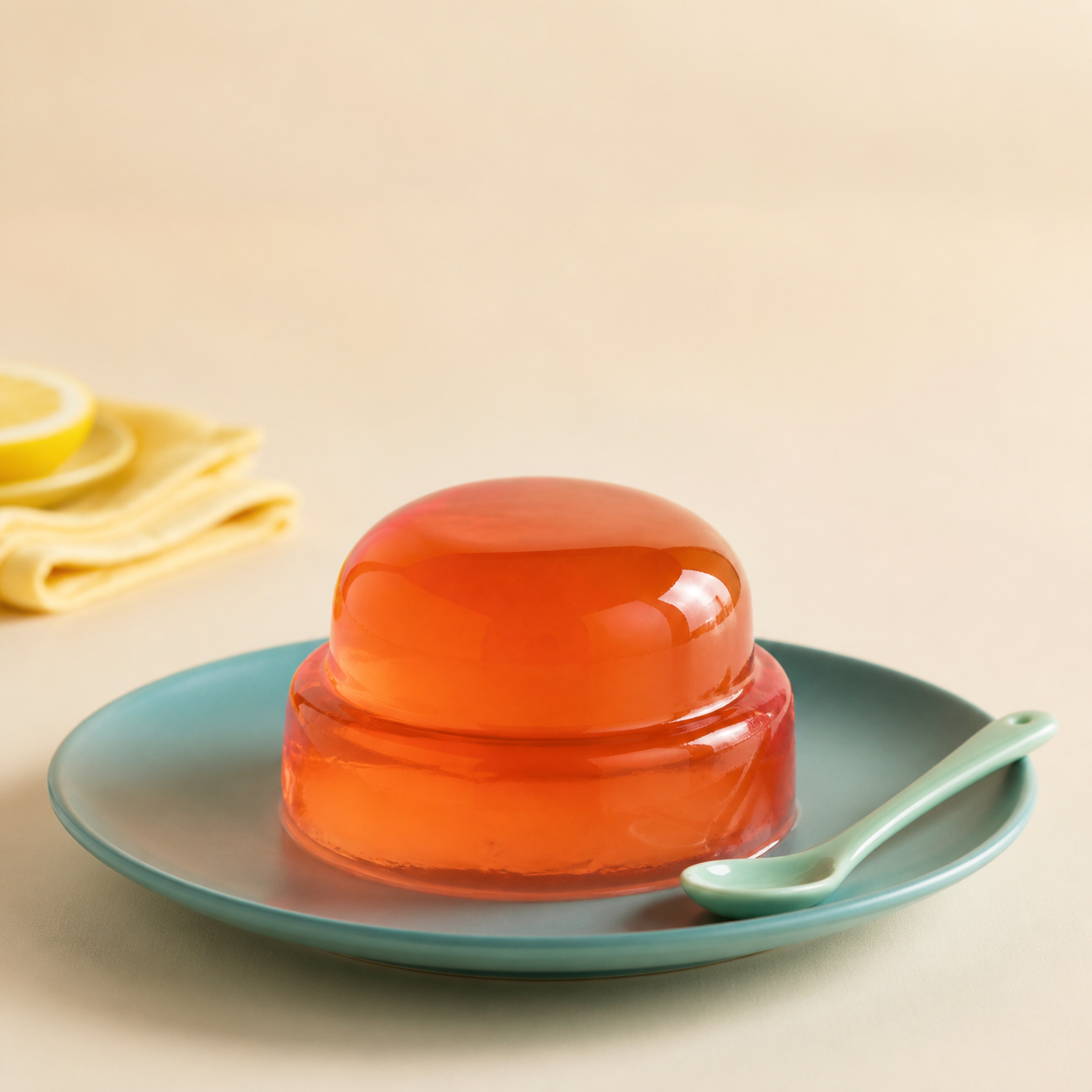
The jelly is painted with overlapping horizontal strokes. The plate, spoon, napkin, tabletop, highlights outside the jelly, and cast shadow remain unpainted. The example uses Jelly at 8px strength, 0.8× speed, and 10px Edge feather. It is not a mock animation: the downloadable file was produced by the same exporter available in the tool.
6. Preview the loop, not one frame
Watch at least two complete cycles. Check the maximum movement in both directions, then look at the join between the last and first frame. Seamless loop keeps the sampled motion periodic; manual trimming after export can remove a matching frame and introduce a pause. Judge the preview at the size where people will see it, because an effect that feels subtle when enlarged may be strong in a small chat window.
If the subject crosses a nearby edge, reduce strength. If the material feels wrong, change the preset. If the movement is readable but emotionally wrong, adjust speed. Change one control at a time so you can tell which decision improved the result.
7. Export for the destination
For a compact GIF, start at 480p, 16 FPS, and one or two seconds with Seamless loop enabled. Flat cartoons compress better than photographs. If a photographic GIF exceeds the upload target, shorten the duration before reducing resolution. GIF is broadly compatible; WebM usually gives better gradients and smaller files; MP4 appears only when the browser provides a compatible encoder.
Every export is generated on your device. Keep the original source and the first local export so you do not repeatedly compress the same animation. Before publishing, verify that the destination does not crop the moving feature, cover it with interface controls, or re-encode it into a visibly rough loop.
Open Purupuru MakerTroubleshooting checklist
A hard tear appears: erase the mask away from the high-contrast boundary, lower strength, and add a modest feather.
The whole subject floats: reduce the mask to one soft feature and restore a stable face, body, prop, or support surface.
Text or labels shimmer: erase every letter and rigid label edge from the mask; do not rely on feathering to keep typography readable.
The GIF is too large: choose a one-second loop at 16 FPS, keep 480p, and consider WebM if the destination accepts video.
Frequently asked questions
How much of the image should I paint?
Start with the smallest soft feature that communicates the effect. A focused mask is easier to blend and keeps faces, text, product labels, and backgrounds stable.
Why does the edge of my mask tear?
The painted area probably crosses a high-contrast boundary or uses too much strength. Erase back from the hard edge, lower strength, and add modest Edge feather.
Which export settings make a compact GIF?
Use 480p, 16 FPS, and a one- or two-second seamless loop. Photographs often need a shorter duration than flat illustrations because they contain more color detail.
Does Purupuru Maker upload my image?
No. Image decoding, mask painting, preview rendering, and export happen in your browser. The site has no image-upload API or server-side image library.
Continue with a focused example
Use the anime, pet, meme, or product guide for a complete source image, exact paint region, actual exported GIF, scenario-specific failure modes, and recommended values.